 Internal Branch Transfers
| Document Version | v.5 |
|---|---|
| Document Last Updated | 8/19/2025 |
| Software Version Documented | v.10 |
Overview
In this document, the concepts and processes of managing internal branch transfers (IBTs) will be discussed.
Assumptions
We will assume throughout this article that you understand the process of creating a quote/order and RFQ/PO as well as the shipping and receiving process. For more information on these subjects please reference the applicable core process documentation in the documentation portal.
Terms:
IBT = Inter Branch Transfer = Internal Order = Internal
General Concepts
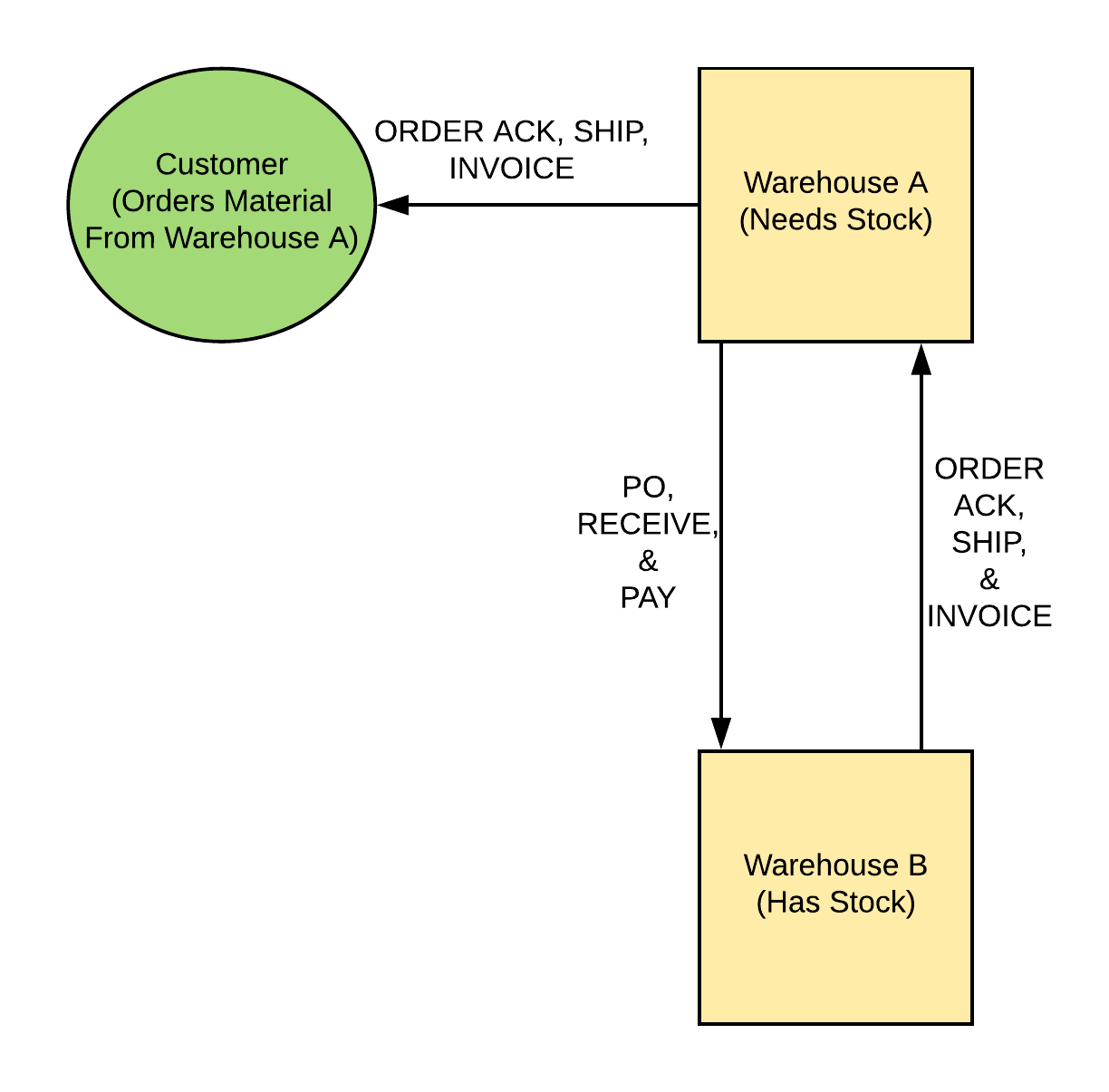
An IBT is used in the case that you have a multi-warehouse distributorship and you would like to fulfill an order or replenish stock using another warehouse’s stock. IBTs in Savance Enterprise are treated very similarly to the way normal purchase orders and sales orders are. For the purposes of explaining the process in this document, the WH that has the stock in the IBT is considered to be the Vendor while the WH requesting the stock is considered to be the Customer.
The basic process is that a user must initiate the IBT and then the WH that has stock (Vendor) will need to ship the material to the WH that is requesting the material (Customer). The WH receiving the stock will receive the material into Savance normally and then turn around and ship the material to the end customer where applicable.
There are three primary ways that IBTs are created:
-
A standalone PO is created either manually or by leveraging critical purchasing, creating an IBT
-
The order level internal flag is set, creating an IBT
-
The line item level internal flag is set, creating an IBT
The flow chart below shows what each entity in the IBT equation is responsible for doing throughout the IBT process.
Creating IBT Via Standalone PO
Should a multi-warehouse distributor be interested in leveraging IBTs to best utilize available stock and optimize purchasing, it may be helpful to review what stock other warehouses have prior to entering a PO to a given vendor. If after the purchasing agent reviews what should be purchased for back orders and stock via critical purchasing or by some other internal process and determines that stock should be brought in from another internal warehouse, the agent can create a standalone IBT PO. To do so follow the steps below.
From Manual RFQ/PO
-
Open a new RFQ/PO
-
Click the INTERNAL checkbox
-
The vendor name field will change to a warehouse combobox

-
Choose the WH you are procuring material from
-
Enter the items you’d like to order and convert

- A pick ticket will print at the WH you selected at which point they will ship the material to your WH through the normal process.
From Critical Purchasing
-
Open critical purchasing and select the items you know should be procured from an internal WH via IBT

-
Repeat for any additional vendors that apply, but ONLY select items that will be brought in via IBT
-
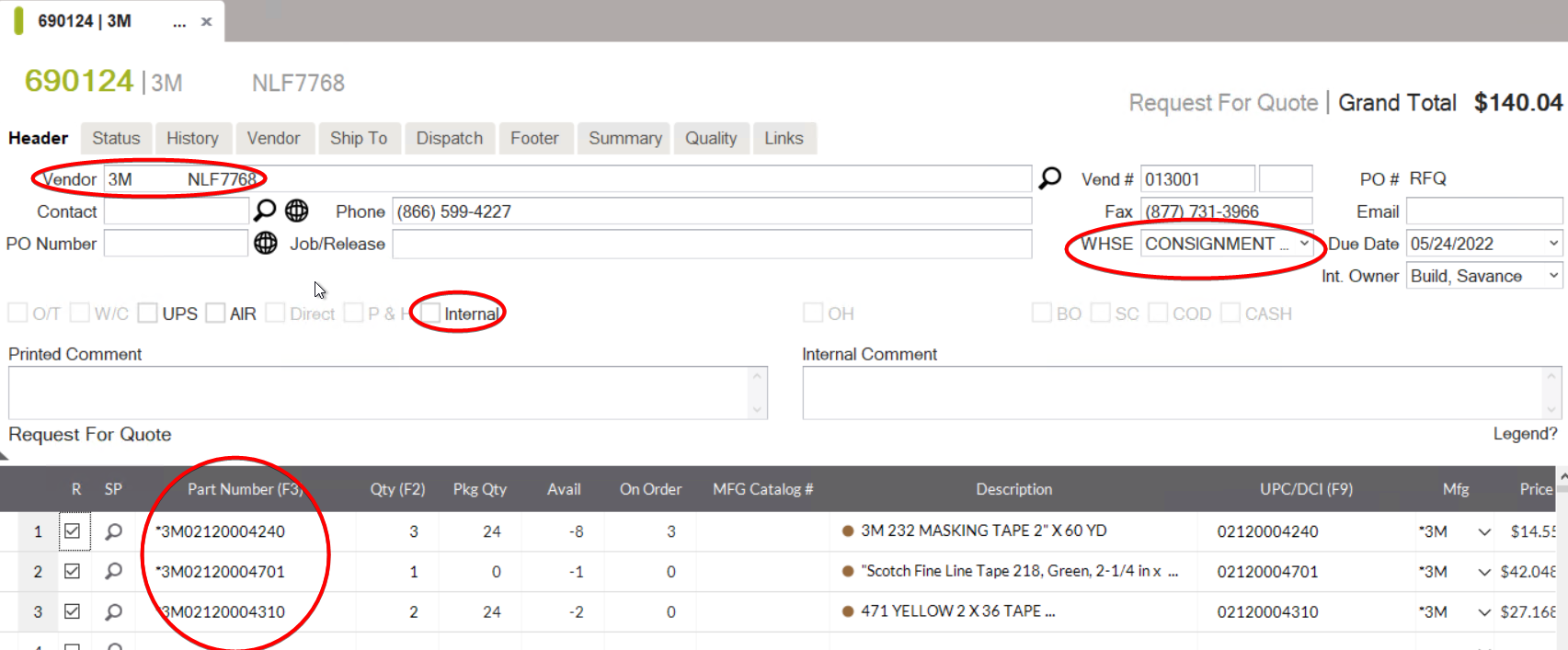
Generate RFQ. Notice that the vendor(s) will be set to the vendor you selected items for in critical purchasing
-
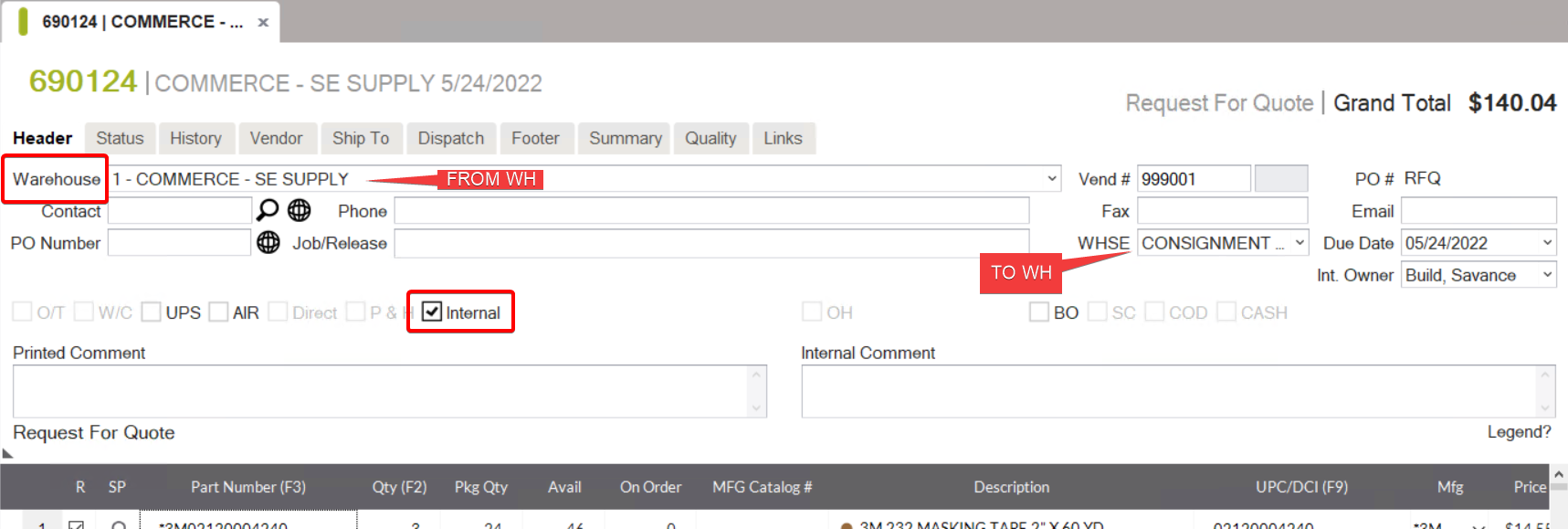
Click the Internal flag in the RFQ header. Notice the vendor field changes to a Warehouse combobox
-
Select applicable warehouse in vendor combobox
-
Convert
-
A pick ticket will print at the WH you selected at which point they will ship the material to your WH through the normal process.
Creating IBTs Via Sales Order
Line Item Level Internals
There are some scenarios where when creating a sales order, the salesperson notices there is no stock at their location, but there is stock at a warehouse close by. In this case, SE allows the user to initiate an IBT for individual line items from within the order. This ends up being very similar to the concept of a linked rfq/po which will become evident as the steps are outlined below.
-
Create a new quote, add customer and items you’d like to sell
-
Notice that in the example below, there isn’t enough stock for one or more items available in the default warehouse to fulfill this order immediately

Checking Availability on a Part Number
Within the line details at times (especially a multi-location) you may want to see what is available at another location, choose an alternative option for delivery, or just view what’s on order, back ordered, etc.
In a new quote/order,
- Enter your part number and hit enter if the AVAIL column shows ‘yellow” in the field that means that the part number you are trying to order is NOT available in the Warehouse of the Order Header.

- Double-click on the ‘Avail’ field within the line order details and the Warehouse Inventory pop-up will appear and allow you to do the following actions:

- By highlighting the warehouse you are wanting to pull product from, click on the following buttons,

-
Line Item Ship & Bill - If you have a multi-location this allows you to ship and bill material directly from the other location so you don’t have to bring stock in.
-
Line Item Internal - If you have a multi-location this allows you to do an internal transfer from one warehouse to another so you can ship and bill from one location.
-
New Order Internal - If you have a multi-location this allows you to do an internal transfer for the entire order from one warehouse to another so you can ship and bill from one location.
-
Line Item Direct - This allows you to create a drop-ship directly from the vendor for this line.
-
Line Item PO Now - This allows you to create a direct PO for the vendor for this line and generate the PO upon conversion automatically.
-
You can also view Warehouse Inventory Details by scrolling to the right within the pop-up
-
Stocked - this means if you frequently purchase and sell this material it will be considered “Stocked”
-
On Hand Qty - the quantity of inventory on hand
-
Reserved Qty - the quantity of inventory that has been reserved to orders already
-
On Order Qty - the quantity of inventory that is currently on order from purchasing
-
Back Ordered Qty - the quantity of inventory that is currently backorders on order
-
Manual Backorder Qty - the quantity of inventory that has been manually back ordered at the order level
-
Allocated Qty - this is the quantity of inventory that has already been allocated to orders for shipment
-
Location On Hand - this is the warehouse location of the material
-
Available - this is the quantity of material that is available for purchase minus, allocation, reserved, back ordered.
-
Replenishment Qty - based on your reorder point, and qty this is a suggestion based on the numbers above what you will need to replenish the orders.
-
Fulfillment Qty - The quantity needed to fulfill open orders and replenish stock.
-
Direct On Order - the amount of this material that is on direct orders
-
Direct Reserved - the quantity of the material that is reserved on direct orders
-
Suspect Bin On Hand - the quantity of this material that has been placed in this bin for further inspection
-
Holding Bin On Hand - the quantity of this material that has been placed in this bin to put away into stock
-
Staged On Hand - the quantity of this material that is currently marked as “staged”
-
In Transit - the quantity of this material that is currently marked in-transit on an order
-
Moving Bin On Hand - the quantity on this material that has been placed in this bin to pick/packed for
-
shipment.
-
On Return - the quantity of returns this material has been on
-
RTV Holding Bin On Hand - the quantity of this material that is placed in this bin to get ready to be sent back to the vendor for return.
-
Future - any quantities held for a future /delayed order
-
Min Order Qty - ff you have any minimum order quantities for this material
-
ReOrder Pt. - the suggested reorder point
-
ReOrder Qty - the suggested reorder quantity
-
Line Item Internal
-
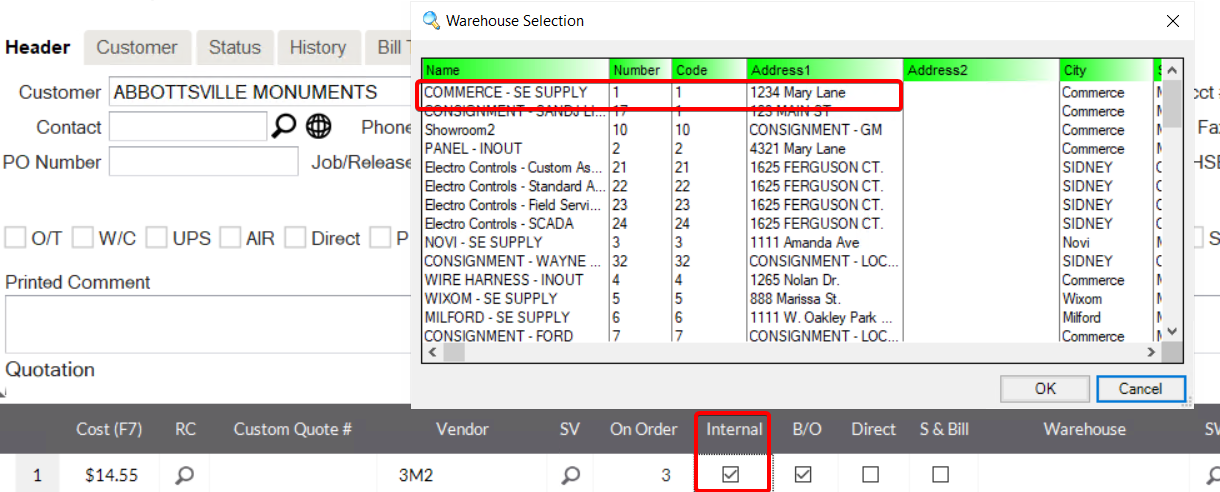
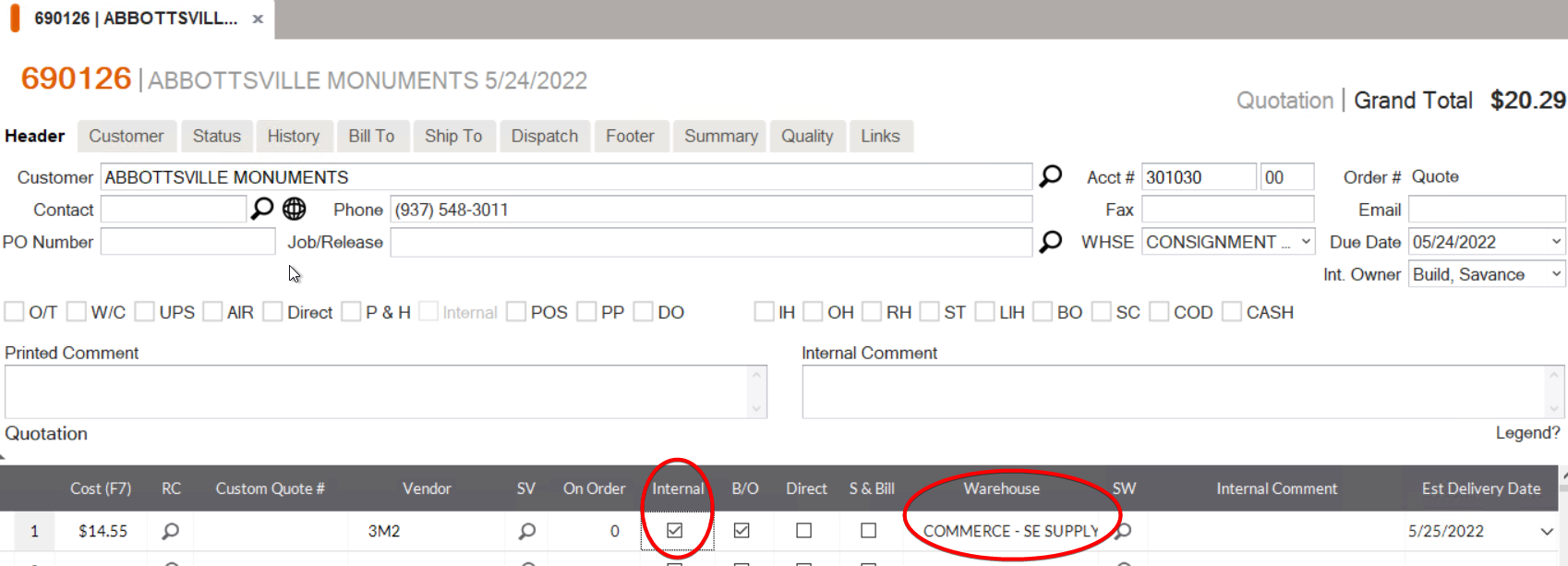
Alternatively, for Line Item Internal, you can scroll to the right to find the Internal column on the line item and check mark it.
-
A screen will pop up showing other warehouses availability for this item
-
Choose the WH you need and click Ok.
-
The from WH will appear in the line item.
-
Repeat for additional lines as needed
-
Convert the order
-
Once the order is converted, you will be brought automatically to the links tab. It is at this point you can confirm that a hard linked Order and PO to move the product.

-
The order and PO are automatically converted so no further steps are required to finalize them
-
A PT will now print at the from WH (Vendor) with the SHIP TO tipping off the warehouse staff to ship the material to the to WH (Customer)
-
The FROM WH should go through the normal shipping process through to delivery to the TO WH
-
The TO WH will receive the material just like any shipment and will be notified to hold the material out for backorders
-
When the TO WH processes backorders, a PT for the material to be delivered to the end customer will print
-
The IBT has now been completed
Adjusting IBT when warehouse has partial stock
Should you have IBT where the warehouse only has partial stock of the item ordered this will show you how to adjust the IBT so you can complete the IBT and order the rest of the items from your Vendor and have them shipped to the correct location.
-
Once the IBT has been picked and shipped you can adjust the quantity to complete the IBT even with partial stock.
-
First Unlock the IBT. History>Unlock Order.
-
Then right-click on the line item and select Adjust Item
-
Then set the quantity to the number of items shipped.
-
Then Save.
-
You can then choose whether you would like a Pick Ticket printed when a shipper is created.

-
You have now completed adjusting the quantity of items shipped on a IBT. As you can see the Status is now Completed.
Invoicing and Paying Internal Branches for IBTs
Should a multi-warehouse distributor want to track IBTs at a more granular level, specifically from an accounting standpoint Savance Enterprise supports invoicing, entering bills, paying and receiving payment for IBTs. This makes it such that the WH providing material actually invoices the WH receiving the material much like a true customer/vendor relationship.
The benefit of tracking IBTs this way is that if a given warehouse buys or sells material they receive from another WH with a different cost or different sell price, there are accounting ramifications that wouldn’t be realized if there was no invoice, bill, payment or received payment entered on each side.
Should your organization want to take this approach for IBTs, the only difference from the process described above is that each respective WH will go through the steps of either invoicing & receiving payment or entering a bill and making a payment. This process is the exact same as is described in the AP/AR core process documentation.
The only thing that stands in the way of internals being invoiced by the WH supplying the material is the setting in the invoicing screen pictured below. Since the invoice is the first step of the accounting process for IBTs, it is critical that this setting is configured according to how your organization wants to handle IBTs. If it is unchecked, the WH that ships the material will not see orders to be invoiced for IBTs in this screen and thus the process is prevented from occurring. There are no negative impacts to the books should your organization choose to abstain from this process. It is up to each individual distributor on whether or not to take the IBT process past shipping and receiving and into AP/AR.

Accounting Concepts
If the user follows the recommended practices outlined above (and does not invoice, receive payment, enter bills or process payment for IBTs) the following ledger transactions will occur during an IBT
| Action | Ledger Account | Debit | Credit |
|---|---|---|---|
| WH B Ships Material to WH A | |||
| IBT COGS | X | ||
| Inventory | X | ||
| WH A Receives Material From WH B in IBT order | |||
| IBT COGS | X | ||
| Inventory | X | ||
| WH A Ships Material to Customer | |||
| IBT COGS | X | ||
| Inventory | X |
**Note that if IBTs are sent through the invoicing process that additional ledger transactions will occur to reflect a change in AP and AR ledgers and ultimately each branch's bank account ledgers.
New Features in V10
Auto Post IBT to Delivered
A process for when IBT POs are received, the corresponding IBT Shipper is marked as delivered as long as it is in a state of Loading or Delivering.
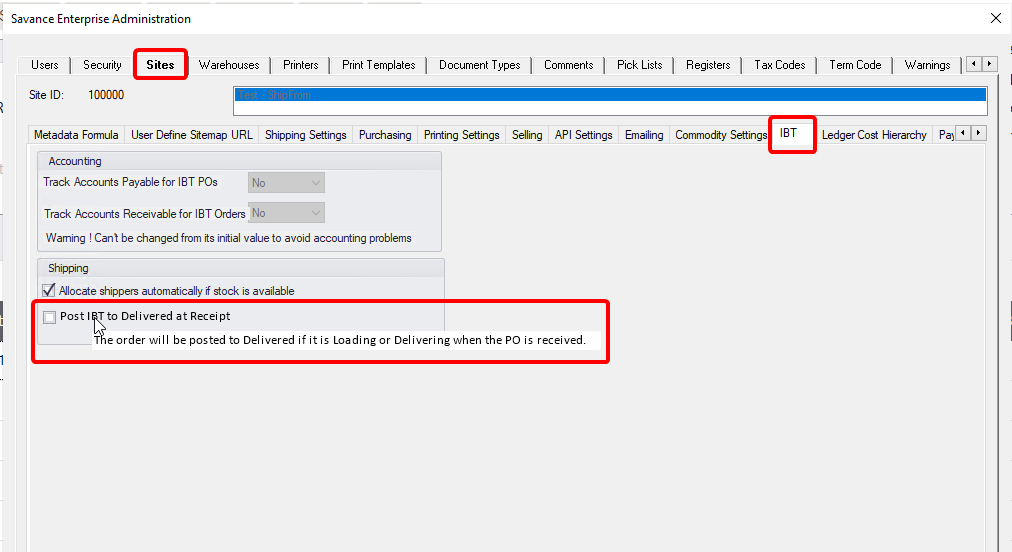
Admin>Sites>IBT - “Post IBT to Delivered at Receipt“
-
When you hover over it a tooltip will appear stating: “The order will be posted to Delivered if it is Loading or Delivering when the PO is received.”
-
It can only be checked if the Accounting settings are set to “No”
-
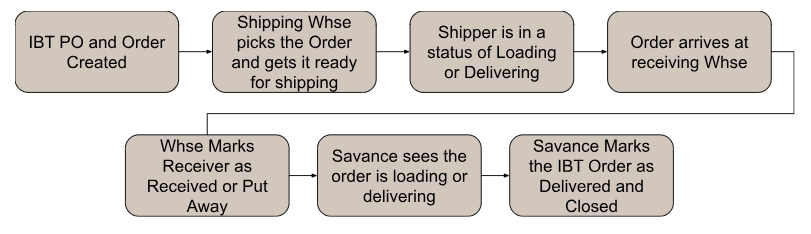
So when there is an IBT order and its corresponding PO, and the user has started the shipping process and it is in a state of Loading or Delivering, then the receiving warehouse processes the receiver to receive or put away, it will mark the shipper as delivered and the user does not have to touch the shipper again to complete the process.
-
If there are multiple shippers, given that they are “loading” or “delivering”, they will be marked “Delivered” when each corresponding receiver is processed.
-
If for some reason the full shipper is received in multiple receivers, the shipper will be marked delivered upon marking the last receiver as received or put away.
- The shipper will remain open until it is fully received or manually marked as delivered.
-
If the shipper is never processed and put into a state of loading or delivering, but the PO is received, the shipper will remain un-processed.
-
If the receiver has some broken and/or missing items, the shipper will still be posted to delivered as long as it’s loading or delivering.
Shipper Status when IBT PO Receiver is Post to Received:
Unreleased
-
Shipper is in state of Picking, as seen on the Shipper tab
-
Receiver is Post to Received on the IBT PO.

- Dialogue box”Error Posting Receiver” stating “Receiver cannot be posted because the IBT order has not yet been shipped” Click OK

-
Shipper is NOT marked as Delivered automatically
-
Shipper must Post to Delivered if it is truly shipped already
Likewise,
Post to Picked - Shipper is in state of Packing, as seen on the Shipper tab
Post to Packed - Shipper is in state of Staging, as seen on the Shipper tab
-
Receiver is Post to Received on the IBT PO.
-
Dialogue box ”Error Posting Receiver” stating “Receiver cannot be posted because the IBT order has not yet been shipped” Click OK.
-
Shipper is NOT marked as Delivered automatically
-
Shipper must Post to Delivered if it is truly shipped already
However,
Post to Staged - Shipper is, in a state of Loading as seen on the Shipper tab
Post to Loaded - Shipper is**,** in a state of Delivering as seen on the Shipper tab
-
Receiver is Post to Received on the IBT PO.
-
The IBT SHIPPER Post to Delivered AUTOMATICALLY.
Shipper Status when IBT PO Receiver is Post to Put Away:
Posted to Loaded Shipper is, in a state of Delivering as seen on the Shipper tab
-
Receiver is Post to Put Away on the IBT PO
-
The IBT SHIPPER Post to Delivered AUTOMATICALLY.
Loading or Delivering
- Multi Shipper and Receiver
-
Shipper being processed in separate shippers
-
Each shipper is processed to either loading or delivering
-
As each receiver is posted to either Received or Putaway
-
The corresponding shipper will automatically be posted to delivered
- Single Shipper and Multi Receiver
-
Items were all shipped out in one shipper
-
And the shipper is in a state of loading or delivering
-
But for some reason on the first receiver, the user only enters a partial qty to be received
-
And posts to received or put away
-
And a new receiver is created with the remaining items
-
The shipper is not marked as delivered yet
-
The receiving warehouse processes the second receiver and again only enters a partial qty and posts to received or put away
-
Thus creating a 3rd receiver with the remaining qty/items on it
-
And the shipper is still not marked as delivered
-
Upon processing the last receiver with the remaining qty and items, and posted to received or put away
-
The shipper will finally be posted to delivered automatically
-
If the last receiver is never fully received
-
The shipper will remain open and the user will need to finish processing the shipper
Broken or Missing items
-
Shipper in Loading or Delivering
-
Fill a Qty to Receive or Put Away, however there are some broken and/or missing items
-
Receiver is Post to Receive or Put Away on the IBT PO
-
The IBT SHIPPER Post to Delivered AUTOMATICALLY.